Getting Started with TikitDesk
Getting Started with TikitDesk
*A quick walkthrough from signup to your first resolved ticket. Takes about 10 minutes.*
What you'll learn
- How to create your TikitDesk workspace
- How to invite your team
- How support requests reach you
- How to create and work your first ticket
Prerequisites
- A work email address
- 10 minutes
Step 1 — Create your workspace
Sign up with your email and password, or with Google sign-in. You'll add your company name and basic details in a short setup wizard.
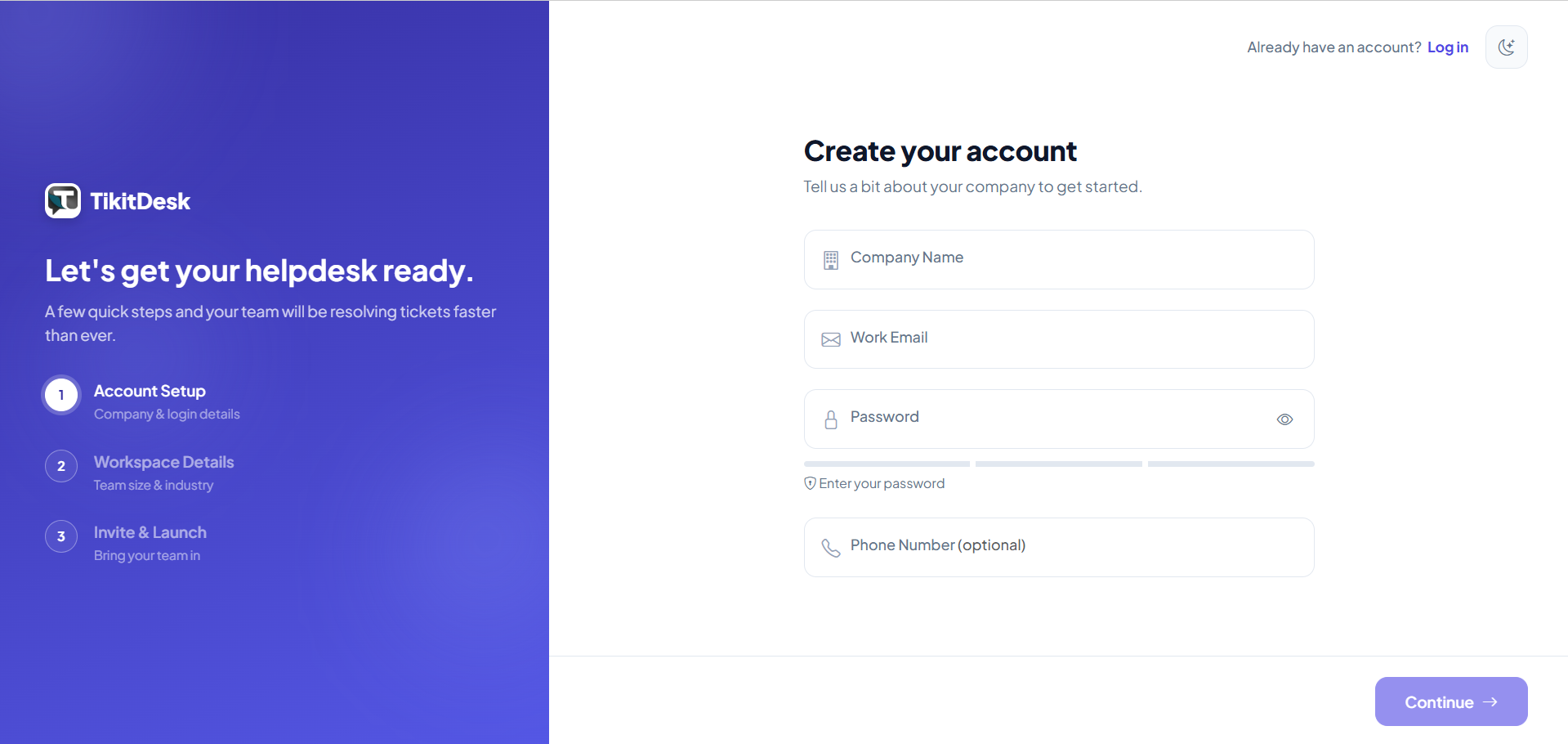
Every new workspace starts with a 15-day free trial with full access, so you can try everything properly before choosing a plan — no credit card required to begin.
Step 2 — Invite your team
From the Users page, click Add User / Invite and enter their name, email, and role.
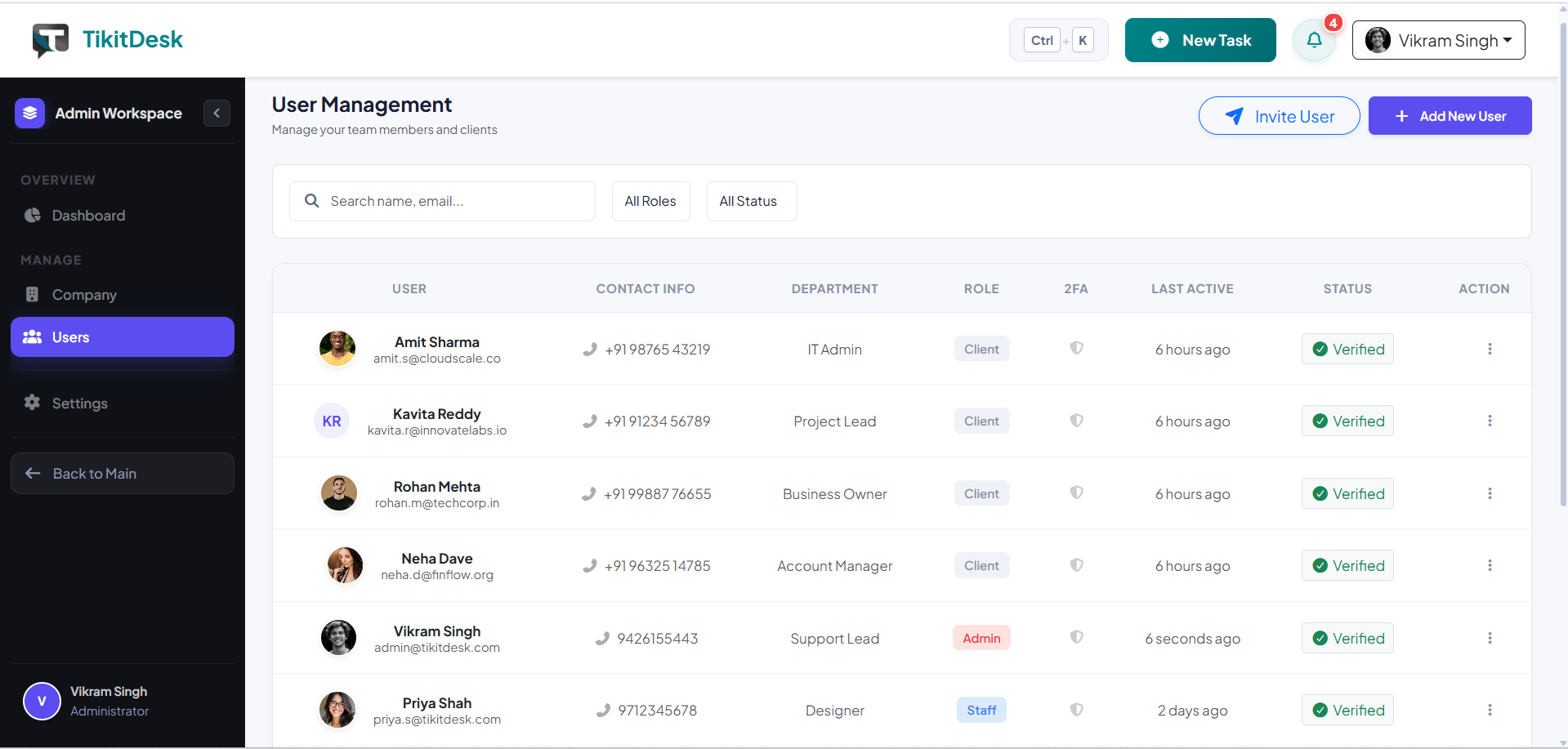
Roles, in short:
- Admin — full control: team, ticket setup, company settings, billing, API keys.
- Staff — works tickets day to day: replies, assignment, status changes, chat.
- Client (your customer) — raises tickets and tracks them.
They'll get an email invite to set their own password. Team size limits depend on your plan.
Step 3 — Set up how tickets reach you
Tickets can come in three ways: your team creating them directly in the app, email, or the API. For most agencies, email is the main one — and it needs no setup on your end beyond forwarding.
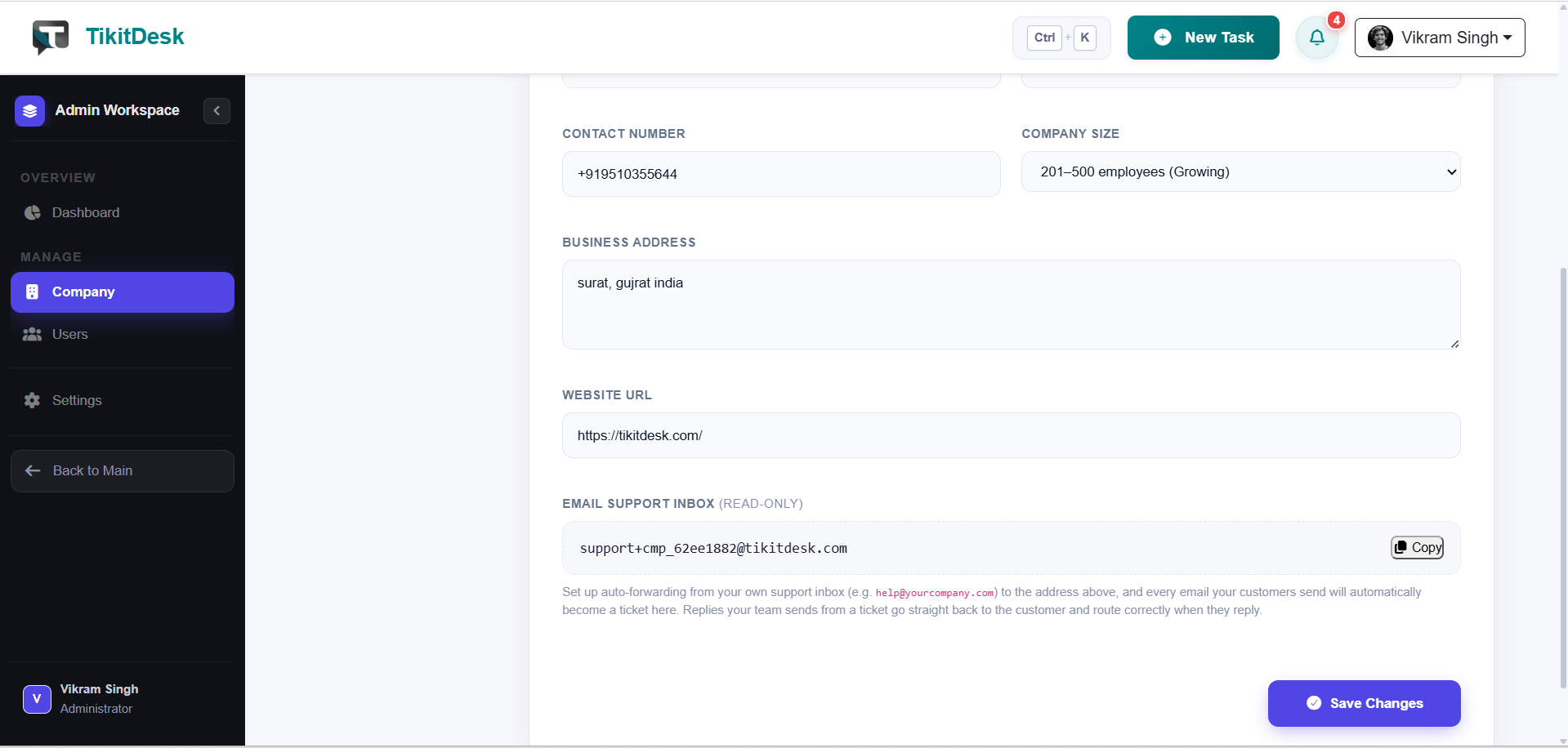
Find your ready-to-use inbound address under Company Settings → Organization → Email Support Inbox. Forward your existing support@yourcompany.com there, or hand the TikitDesk address out directly — no IMAP/SMTP setup needed. See the Email Support article for the full picture.
Step 4 — Create your first ticket
Open New Ticket, give it a title and description, and set a status, priority, and department.
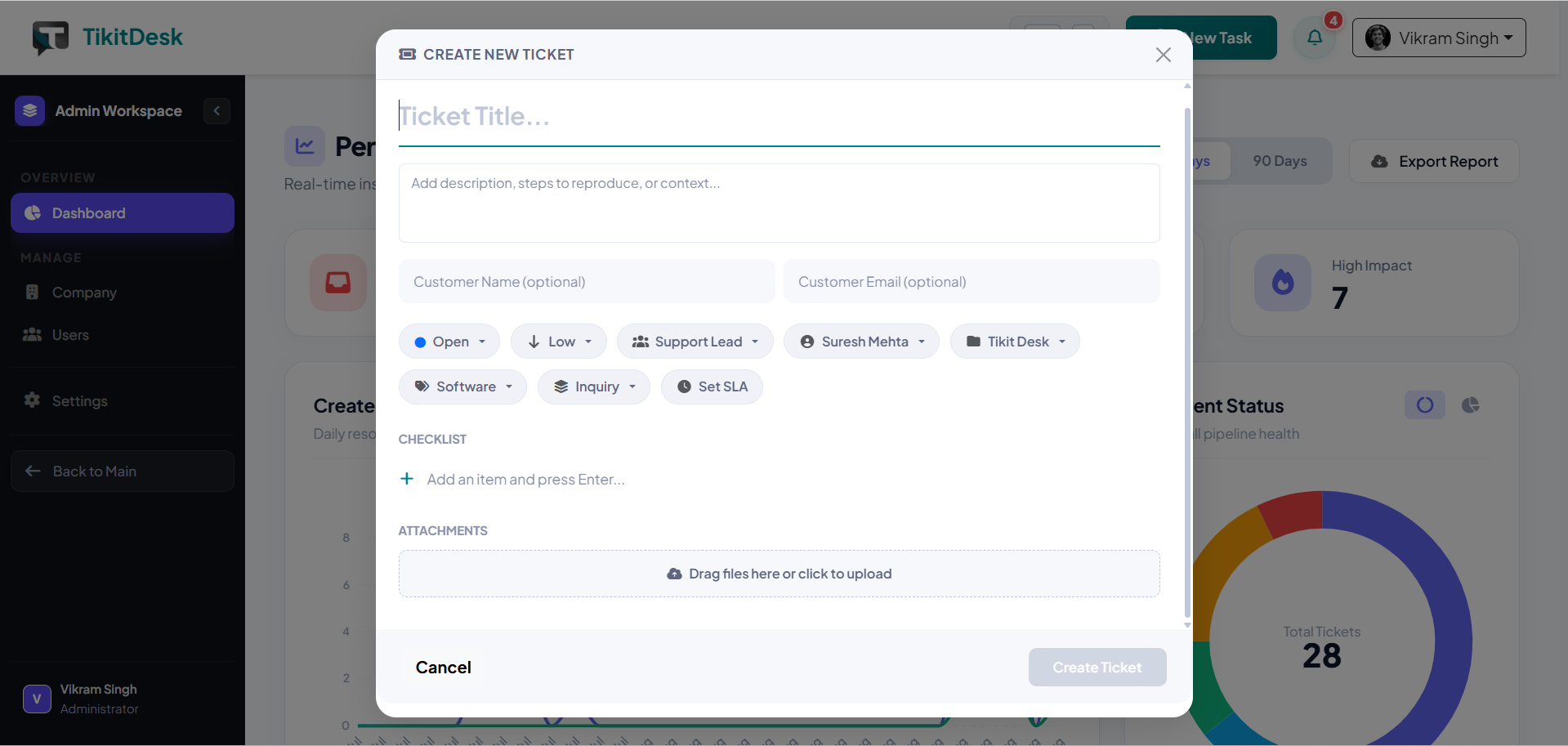
You can also assign it to a team member, attach a project or issue type, and add a checklist of steps to work through. Once created, it shows up on your Board (Kanban, drag between statuses) or List (a sortable, filterable table) — switch between them from the ticket view.
Step 5 — Work the ticket
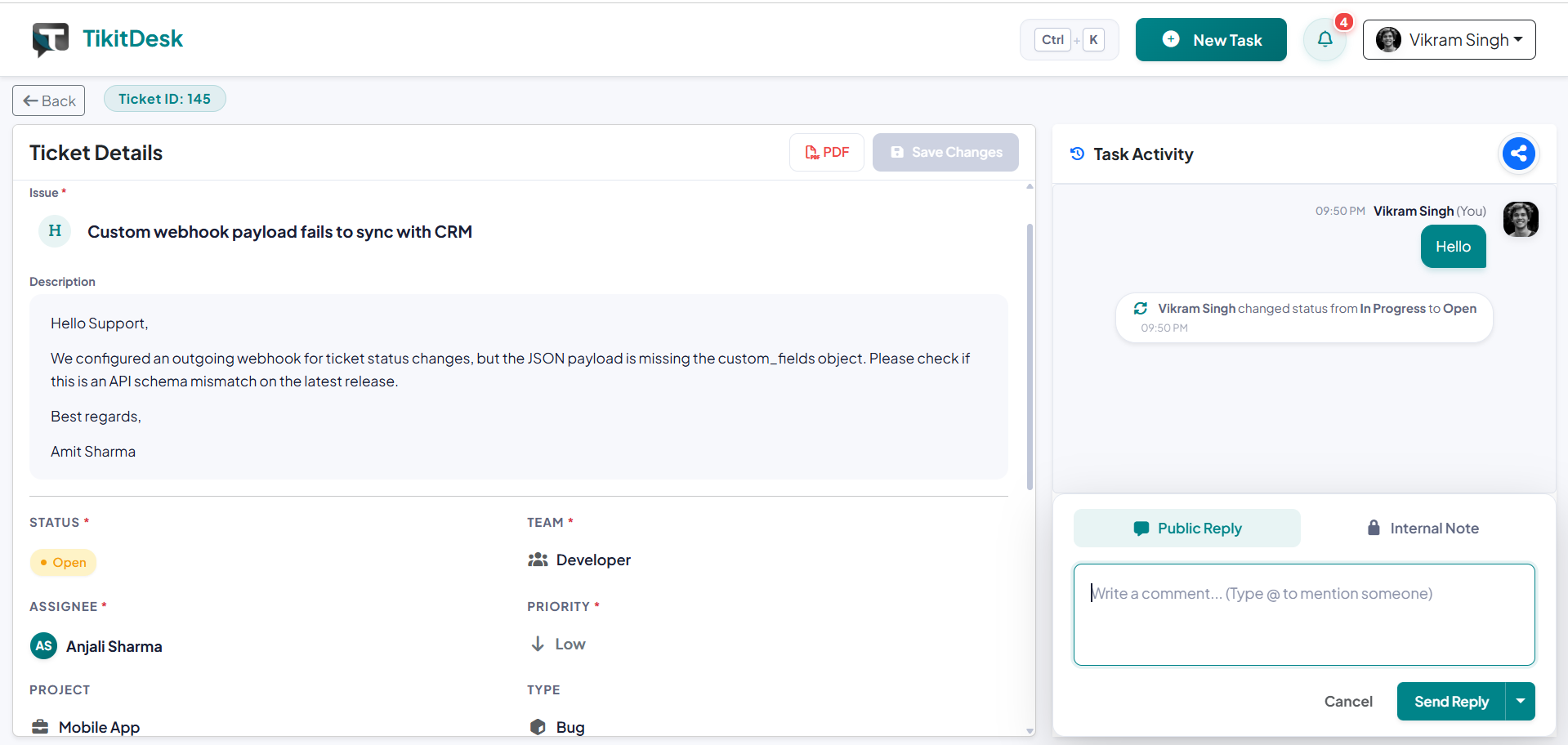
- Reply — goes to the client by email; they can respond straight from their own inbox, no login needed.
- Internal note — visible to your team only, never the client.
- Change status — move it through Open → In Progress → Pending → Close (your Admin can customize these).
- Attach files — both your team and clients can attach files, including through chat.
Common Issues
- Invite email didn't arrive — ask them to check spam, or resend the invite from the Users page.
- Can't see a ticket a teammate created — department-wide visibility means you should see everything in your own department; if you don't, check you're actually in that department (Users page).
- Emails aren't becoming tickets — see the Troubleshooting Guide's dedicated section on this.
Tips
- Set up your Email Support Inbox forwarding on day one — it's the single biggest time-saver.
- Invite your whole team before you start working real tickets, so nothing gets missed while someone's still on the outside.
Still need help?
If you're stuck partway through setup, reach out — see the Still need help? options at the bottom of the Help Center homepage.